
TiviMate Buffering Fixes: 9+ Ways to Stop Freezing (2026)
Few things ruin a match like the spinning circle. When TiviMate buffers or freezes, the instinct is to blame the app — but in our experience the app itself is the cause only rarely. The real culprit is almost always one of nine things: your internet speed, your Wi-Fi, your device running out of room or memory, a setting, your internet provider, or the IPTV service itself. This guide works through every fix in the order you should try them, fastest first.
Do the fixes one at a time and test with the same channel for a few minutes after each change. Changing five things at once might stop the buffering, but you will never learn what caused it — and it will come back. If TiviMate is not set up yet, begin with the TiviMate IPTV setup guide; if only the guide is empty rather than the picture freezing, you want the EPG fix guide instead.
1 month $19.99 · 3 months $39.99 · 6 months $59.99 · 12 months $99.99 (1 device)
Fixes 1–3: How Do You Check Your Connection First?
Fix 1 — Test your real speed on the TV. Run a speed test on the same device, in the same room, not on your phone next to the router. You need roughly 10 Mbps for HD and 25 Mbps for smooth 4K, and you need it at the hour you actually watch — evening speeds on a busy network can be half the morning result.
Fix 2 — Restart everything, properly. Unplug the router and the Firestick or Android TV box for thirty seconds, then let the router fully start before plugging the device back in. This boring fix clears more buffering than any other, because routers and sticks both degrade slowly over weeks of uptime.
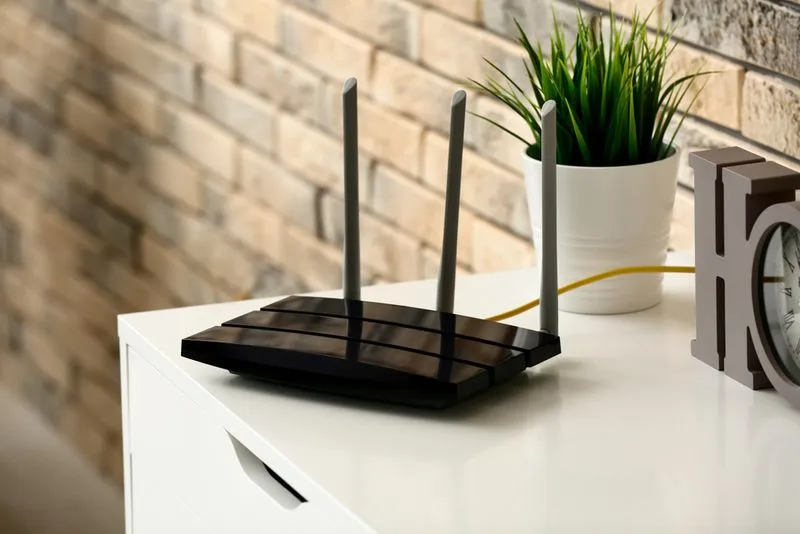
Fix 3 — Improve the Wi-Fi or go wired. Move to the 5 GHz band if your device is near the router, move the router out from behind the TV or inside a cabinet, and reduce distance and walls between router and stick. Better still, use an Ethernet adapter for the Firestick or plug your Android TV box straight into the router: a wired connection removes Wi-Fi from the equation entirely and is the single most reliable upgrade for 4K streaming. If your install is new, the placement advice in our TiviMate on Firestick guide will help.
Fixes 4–6: How Do You Fix the Device and the App?
Fix 4 — Clear the TiviMate cache. On the device, go to Settings, Applications, Manage Installed Applications, TiviMate, then Clear cache. A bloated cache makes the app sluggish and can corrupt playback. Never choose Clear data unless you want to set everything up again.
Fix 5 — Free up storage and memory. Firesticks in particular slow to a crawl when storage is nearly full. Delete apps you do not use, keep at least 500 MB to 1 GB free, and force-stop heavy background apps. If your device has been running for weeks, a restart frees memory too.
Fix 6 — Adjust TiviMate’s own settings. In TiviMate Settings, Playback, try switching the decoder between hardware and software if one channel type stutters, and increase the buffer size if your connection is fast but uneven — a larger buffer trades a slightly slower channel start for much steadier playback. Also update TiviMate to the latest version; player bugs do get fixed, and old versions paired with new streams are a quiet cause of freezing.
Stay Safe While Streaming
Evening buffering is often your internet provider slowing streaming traffic, and a VPN is the cleanest way to test that — and to stop it. A VPN also helps if your internet provider slows streaming traffic at peak hours, and it keeps your viewing private on shared or public networks. We recommend Surfshark VPN — it works on Firestick, Android TV and phones, allows unlimited devices on one account, and is fast enough for 4K. Affiliate disclosure: if you sign up through our link we may earn a commission, at no extra cost to you.

Fixes 7–9+: How Do You Tell If It Is Your ISP or the Service Itself?
Fix 7 — Test another channel and another device. If one channel buffers and fifty others play perfectly, that single stream is the problem, not your setup. If everything buffers on the TV but plays fine on your phone on the same Wi-Fi, the TV device is the problem. This test tells you where to keep digging.
Fix 8 — Rule out ISP throttling with a VPN. If buffering appears mainly in the evening, during big matches, your internet provider may be slowing streaming traffic. Connect a VPN and test the same channel: if the freezing stops immediately, throttling was the cause. The VPN section below covers the tool we recommend for exactly this test.
Fix 9 — Accept when it is the IPTV service. If your speed is strong, wired makes no difference, a VPN changes nothing, and every channel buffers at all hours, the honest answer is that the service behind the playlist is overloaded or poorly run. No player setting fixes a bad server. That is why choosing the service matters as much as choosing the player — see what to look for in the best IPTV for TiviMate, and note that Premium player features make no difference to stream quality, as our Premium vs Free comparison explains.
Frequently Asked Questions
Why does TiviMate buffer on one channel but not others?
A single buffering channel usually means that channel’s stream or server is overloaded, not your home setup. Test several channels: if most play smoothly, report the faulty channel to your provider or simply watch an alternative feed of the same channel if one exists.
How much internet speed does TiviMate need for 4K?
About 25 Mbps of real, sustained speed at the device for smooth 4K, and around 10 Mbps for HD. What matters is the speed at the TV at the time you watch, which is often much lower than your plan’s headline figure in the evening.
Does TiviMate Premium stop buffering?
No. Premium unlocks features like multiple playlists, catch-up and recording, but it does not change stream quality or speed. Buffering is caused by your connection, device or IPTV service, never by the free version of the player.
Will a VPN fix TiviMate buffering?
It can, in one specific case: when your internet provider throttles streaming, a VPN hides the traffic type and often restores full speed. It will not fix slow Wi-Fi, an overloaded device or a bad IPTV server, so use it as a test after the basic fixes.
Related Guides
- TiviMate IPTV Setup: The Ultimate Easy Guide for Firestick & Android TV (2026)
- How to Install TiviMate on Firestick: Step-by-Step Guide (2026)
- TiviMate Premium vs Free: Price, Features and Is It Worth It? (2026)
- TiviMate EPG Setup and Fix: TV Guide Not Working? (2026)
- Best IPTV for TiviMate: What to Look For and Our Pick (2026)
Try 4K Media TV free for 24 hours: message us on WhatsApp at +212 638 196 267 and we will set up your free trial for TiviMate — 57,000+ channels and 185,000+ movies and series, Premium plans from $19.99.
Try 4K Media free for 24 hours
Full Premium access — every channel, every match, all VOD — free for a full day, ready to load into TiviMate.
See Premium Plans Get 24H Trial