
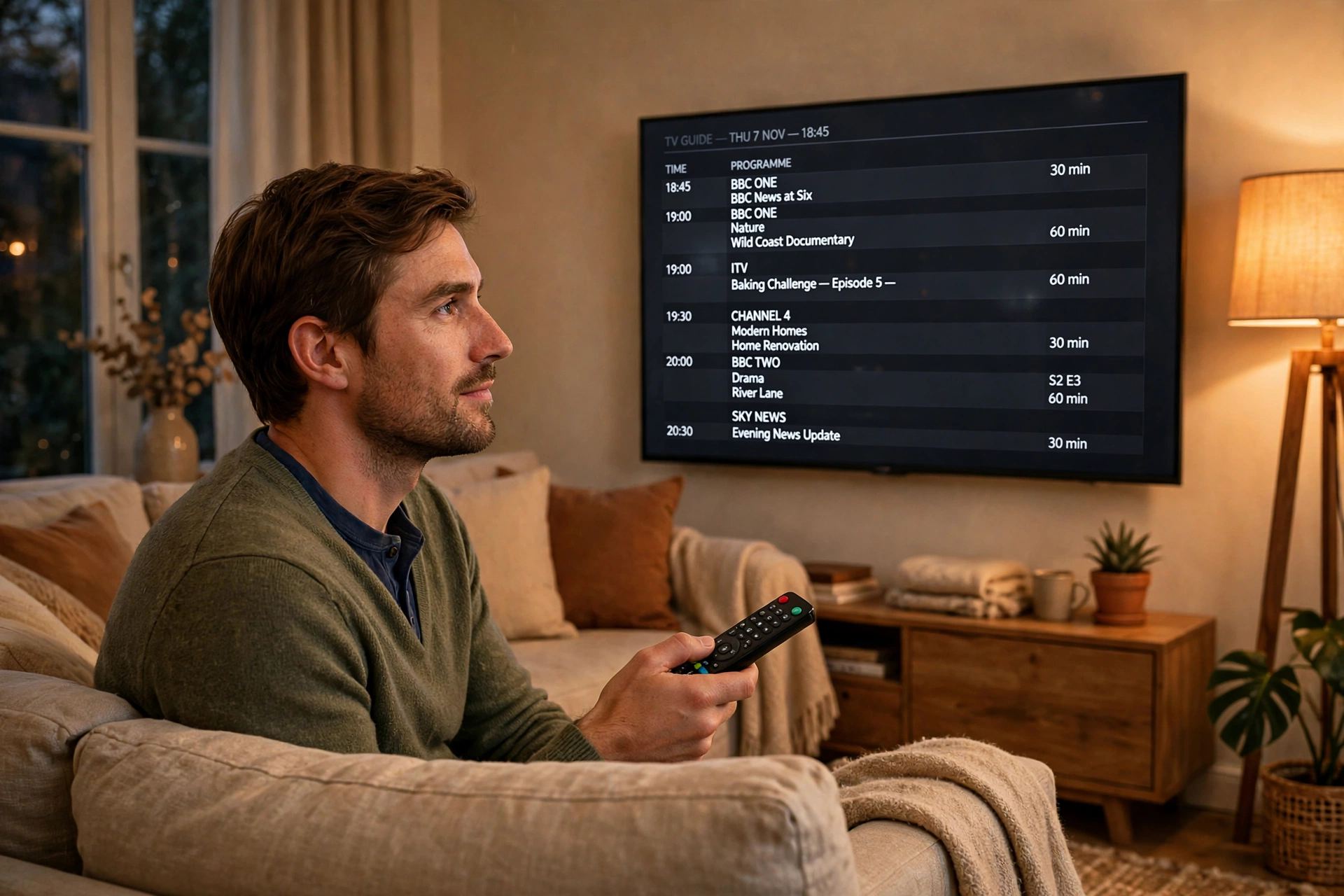
TiviMate EPG Setup and Fix: TV Guide Not Working? (2026)
The TV guide is the heart of TiviMate. When the EPG works, you browse channels like proper cable TV — what is on now, what is on next, descriptions, reminders and catch-up. When it does not, you get the two most reported TiviMate problems of all: a guide full of “No information”, or a guide that is completely empty. Both are fixable, and neither usually means your subscription is broken.
This guide covers both halves of the job: setting the EPG up correctly the first time, and a fix checklist, in the right order, for when the guide stops working later. If your TiviMate is not installed yet, start with the complete TiviMate IPTV setup guide and come back here once your channels play.
1 month $19.99 · 3 months $39.99 · 6 months $59.99 · 12 months $99.99 (1 device)
How Do You Set Up the EPG in TiviMate Correctly?
Most providers supply the guide in one of two ways. With an Xtream Codes login, the EPG usually comes with the playlist automatically — TiviMate builds the guide from the same server. With an M3U playlist, there is normally a separate EPG link, often ending in .xml or .xml.gz, which must be added by hand. Mixing these up is the number one setup mistake: the channels load from the M3U, but nobody ever told TiviMate where the guide lives.
- Open TiviMate and go to Settings, then Playlists, and select your playlist.
- Open EPG sources and check that at least one source is listed and enabled. If the field is empty, choose Add source and paste the EPG link your provider sent you, exactly as sent.
- Go back and choose Update EPG, then wait. A full guide for thousands of channels can take several minutes to download and process the first time — do not interrupt it.
- Set “Update EPG on app start” and a daily update time in Settings, under EPG, so the guide refreshes itself instead of slowly going stale.
- Restart TiviMate and open the guide. Programmes should now appear against most major channels.
Note that some small or regional channels genuinely have no guide data anywhere — if ninety percent of channels show programmes and a few obscure ones do not, your EPG is working normally.
Why Does TiviMate Say “No Information”?
Work through these causes in order, because they go from most to least common. First, the EPG was never updated or the update failed: run Update EPG manually from the playlist settings and watch for an error message. Second, the EPG link is wrong: one changed character, an expired link, or a link from an old subscription will silently produce an empty guide, so re-copy it from your provider’s original message. Third, the time shift is off: if programmes appear but at the wrong hours, the guide data is fine and the offset is not — set the EPG time shift in the playlist settings to match your timezone, or set it to zero if your provider already supplies local times.
Fourth, the app cache is stale: on Firestick or Android TV, go to the device Settings, Applications, TiviMate, and choose Clear cache — not Clear data, which would remove your playlist. Fifth, your subscription has expired or the provider’s EPG server is down: if channels also fail to play, the problem is the service, not the guide; our best IPTV for TiviMate guide explains what reliable EPG support looks like. Finally, remember that guide problems and playback problems are different faults — if channels freeze rather than merely lacking descriptions, use the buffering fixes instead.
Stay Safe While Streaming
Guide data and streams both come over your internet connection, and your provider can see the services your home connects to. A VPN also helps if your internet provider slows streaming traffic at peak hours, and it keeps your viewing private on shared or public networks. We recommend Surfshark VPN — it works on Firestick, Android TV and phones, allows unlimited devices on one account, and is fast enough for 4K. Affiliate disclosure: if you sign up through our link we may earn a commission, at no extra cost to you.

Which EPG Settings Should You Change from the Defaults?
Three settings are worth touching. Update interval: set the EPG to update once a day, ideally overnight, so listings are fresh without the app grinding during viewing hours. Past days to keep: if you use catch-up, keep several days of past guide data, because catch-up is driven from the guide — this is a Premium feature, and the differences are explained in TiviMate Premium vs Free. Guide appearance: in Settings, Appearance, TV Guide, you can adjust how many hours the grid shows and the text size, which makes a big difference on smaller TVs.
On Firestick specifically, storage matters: guide data for huge playlists is not small, and a stick that is nearly full will fail updates quietly. Delete unused apps, and if you installed TiviMate recently, the storage advice in our Firestick install guide is worth rereading.
Frequently Asked Questions
How long does the TiviMate EPG take to load the first time?
Usually a few minutes for a large playlist. The guide file for thousands of channels is big, and TiviMate must download and process it. Run Update EPG, leave the app open, and check again after five minutes before assuming something is broken.
Why do some channels have EPG but others show No information?
That is normal. Major channels have guide feeds; small, regional or newly added channels often have none anywhere. If most channels show programmes, your EPG is set up correctly and nothing needs fixing.
What is EPG time shift in TiviMate and should I change it?
Time shift corrects guide times when programmes appear at the wrong hour. If listings are offset by a fixed number of hours, set the shift in the playlist’s EPG settings to compensate. If times are already correct, leave it at zero.
Will clearing the TiviMate cache delete my playlist?
No. Clear cache only removes temporary files and is safe. Clear data is the dangerous option — it resets the app and removes playlists and settings, so only use it if you are prepared to set TiviMate up again from scratch.
Related Guides
- TiviMate IPTV Setup: The Ultimate Easy Guide for Firestick & Android TV (2026)
- How to Install TiviMate on Firestick: Step-by-Step Guide (2026)
- TiviMate Premium vs Free: Price, Features and Is It Worth It? (2026)
- TiviMate Buffering Fixes: 9+ Ways to Stop Freezing (2026)
- Best IPTV for TiviMate: What to Look For and Our Pick (2026)
Try 4K Media TV free for 24 hours: message us on WhatsApp at +212 638 196 267 and we will set up your free trial for TiviMate — 57,000+ channels and 185,000+ movies and series, Premium plans from $19.99.
Try 4K Media free for 24 hours
Full Premium access — every channel, every match, all VOD — free for a full day, ready to load into TiviMate.
See Premium Plans Get 24H Trial